Today We do the Google NotebookLM Review and I still remember the first time I uploaded a 40-page research paper into Google’s NotebookLM and asked it a simple question the answer came back in seconds, accurate, clear, and pulled directly from that document. No guessing, no made-up information, just a real answer from my own source. I’ve been using NotebookLM almost daily since then, and after weeks of testing it across student projects, work research, and personal writing, I can honestly tell you it’s become one of the most reliable tools in my workflow.
NotebookLM is a free AI powered research assistant made by Google you upload your documents, and it reads, understands, and answers anything you ask based only on what you gave it. It doesn’t pull random stuff from the internet, which is exactly why I trust it over other AI tools. Whether you’re a student trying to make sense of dense textbooks, a researcher juggling multiple papers, or a professional buried under reports, this tool genuinely saves time. In this guide, I’m sharing everything I’ve learned from actually using it what it is, how to set it up, what it can do, where it falls short, and whether it’s worth adding to your daily routine.
Read Also Best AI Apps for Student In 2026
What Exactly Is NotebookLM? (Google NotebookLM Review)
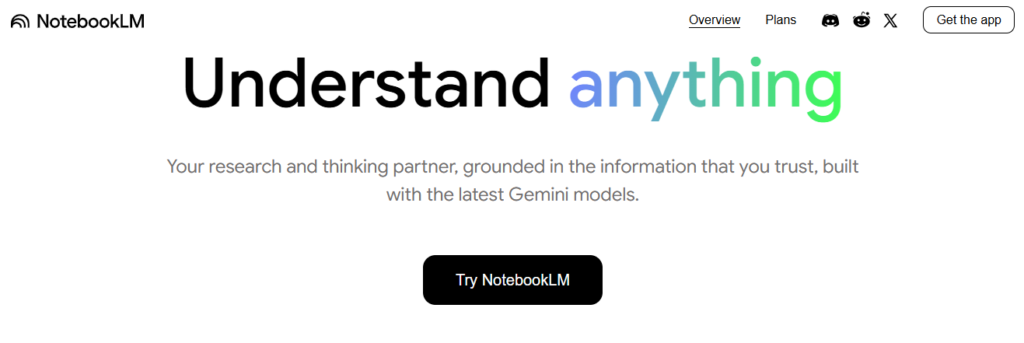
NotebookLM is a free AI-powered tool from Google that helps you understand and work with your documents. Think of it as a smart notebook that doesn’t just store your notes—it actually reads them, understands them, and can answer questions about them.
The best part? Unlike ChatGPT or other AI tools that pull information from the entire internet, NotebookLM only uses the sources you give it. This means no hallucinations pulling random facts from who-knows-where. Everything it tells you comes directly from your documents.
subscribe YouTube channel @thetechdrivehub
Getting Started: It’s Easier Than You Think(Google NotebookLM Review)
Setting up NotebookLM takes maybe two minutes. Here’s what you do:
First, head over to notebooklm.google.com and sign in with your Google account. That’s it for the login part.
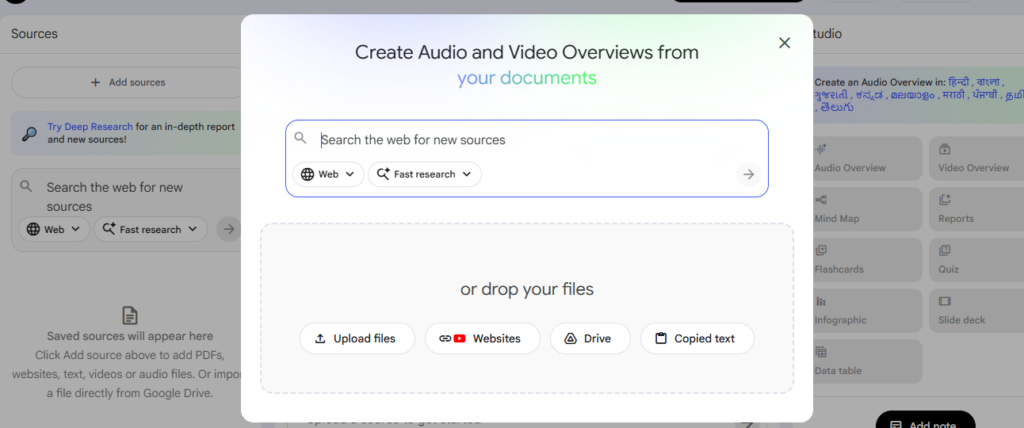
Next, create a new notebook. You can have multiple notebooks for different projects—one for your thesis, another for work presentations, maybe one for that book you’re writing.
Then comes the fun part: adding your sources. You can upload PDFs, paste in text, link to websites, or even connect your Google Docs. I usually drag and drop my files because it’s quick, but use whatever works for you.
What Can You Actually Do With It?(Google NotebookLM Review)
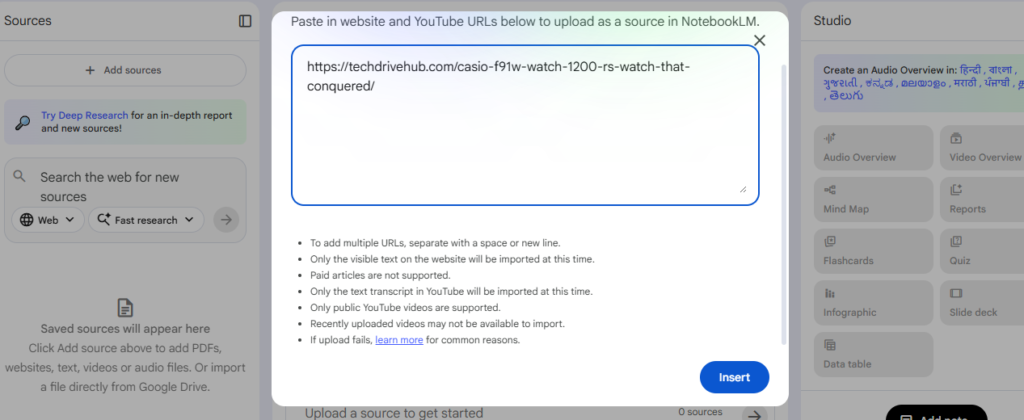
This is where NotebookLM really shines. Once your sources are loaded, you can:
Ask Questions: Type any question about your documents, and NotebookLM answers using only the information from those sources. I asked mine to explain a complicated research methodology from a 50-page paper, and it broke it down in simple terms with specific quotes.
Get Summaries: Need the key points from a long document? NotebookLM creates clear, concise summaries. I’ve used this for everything from academic articles to meeting transcripts.
Find Connections: This feature blew my mind. NotebookLM can spot patterns and connections across multiple documents that you might miss. When I uploaded five different articles on tech reviews, it identified the common themes and contradictions between them.
Create Study Guides: Students, this one’s for you. NotebookLM can generate study guides, FAQs, and even practice questions based on your materials.
The Audio Overview Feature (It’s Wild)(Google NotebookLM Review)
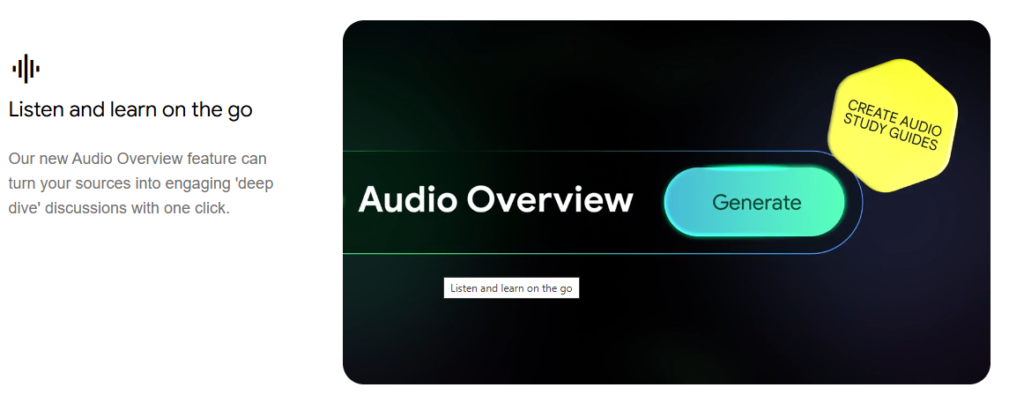
Here’s something I didn’t expect: NotebookLM can turn your documents into a podcast-style conversation between two AI hosts. They discuss the key points from your sources like they’re on NPR. i put one self help book on it and it gives immense podcast.
Tips I Wish I’d Known Earlier (Google NotebookLM Review)
After using NotebookLM for a while, I’ve picked up some tricks:
Be specific with your questions. Instead of “What’s this about?”, try “What are the three main arguments the author makes about Artificial Intelligence?”
Use multiple related sources. The real magic happens when you upload several documents on the same topic. NotebookLM can synthesize information across all of them.
Pin important notes. When NotebookLM gives you a particularly useful response, pin it. You can reference these later without asking the same question twice.
Organize your notebooks. Don’t dump everything into one notebook. I keep separate notebooks for different projects, which keeps things clean and makes the AI responses more focused.
What NotebookLM Can’t Do (Yet)
Let’s be real about the limitations: It won’t search the internet for you. Everything comes from your uploaded sources, which is great for accuracy but limiting if you need current information.
There’s a limit to how many sources you can upload per notebook , though that’s usually more than enough for most projects.
It can’t edit your sources or create entirely new content from scratch. It’s designed to help you understand and work with existing information, not to write your essay for you
Privacy: Should You Worry?
This is important: Google says they don’t use your NotebookLM data to train their AI models. Your uploaded documents stay private to you.
That said, I still wouldn’t upload anything confidential or sensitive. Use your judgment, especially with work documents or personal information.
Who Should Use NotebookLM?
Honestly? Almost anyone who deals with information:
Students can use it to study more effectively and understand complex readings. I’ve seen students cut their study time in half because they can quickly clarify confusing concepts.
Researchers benefit from the ability to synthesize information across multiple papers and identify gaps in the literature.
Writers and content creators can organize their research and find connections between sources that spark new ideas.
Professionals can make sense of industry reports, meeting notes, and project documentation without spending hours rereading everything.
My Final Thoughts
NotebookLM isn’t going to replace actual reading and thinking—and it shouldn’t. But it’s an incredibly powerful tool for working smarter with information.
I’ve saved probably 10 hours a week since I started using it. That’s 10 hours I’m not spending searching through documents for that one quote or rereading papers to find specific information.
Is it perfect? No. But it’s free, it’s improving regularly, and it genuinely makes research less painful.
If you’re spending significant time working with documents, give NotebookLM a try. Start with one project, upload your sources, and just ask it questions. You’ll figure out quickly whether it fits into your workflow.
The future of research assistance is here, and it’s surprisingly accessible. Why not take it for a spin?
Have you tried NotebookLM? What’s been your experience? Drop a comment below and let me know what you’re using it for!
for more articles please visit www.techdrivehub.com and subscribe our youtube channel thetechdrivehub for videos